Use right mouse button and “w a s b” to move around scene and look, like in a first person shooter. Hold shift and it sprints.
Hot keys:
https://docs.unity3d.com/2017.3/Documentation/Manual/UnityHotkeys.html
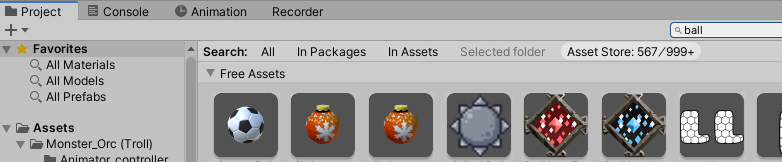
Quickly search and add assets to a project
Go to project view > search
type in what you’re looking for, then click Asset Store
Animations
To slow down animation, drag last keyframe to the right.
After creating an animation, in animator controller, double click Controller. This will show animator layers / state machine.
Update vs. FixedUpdate
Read input in Update
Move in FixedUpdate
Update runs once per frame.
FixedUpdate can run once, zero, or several times per frame, depending on how many physics frames per second are set in the time settings, and how fast/slow the framerate is.
FixedUpdate used when applying forces, torques, or other physics-related functions – because you know it will be executed exactly in sync with the pyshics engine itself.
Update – can vary out of step with the physics engine, faster or slower, depending on how much of a load the graphics are putting on the rendering engine at any time.
Project Settings > Time > Fixed Timestep
framerate – independent interval that dictates when physics calcs and FixedUpdate() events are performed
Update default gravity settings
Project Settings > Physics > Gravity XYZ direction
Default used: Y axis: -9.81
Change input settings
Project Settings > Input Manager
Vector3.forward
//This is the forward direction of your object, example:
transform.Translate(Vector3.forward * Time.deltaTime);
Time.deltaTime
//This property provides the time between the current and previous frame.
